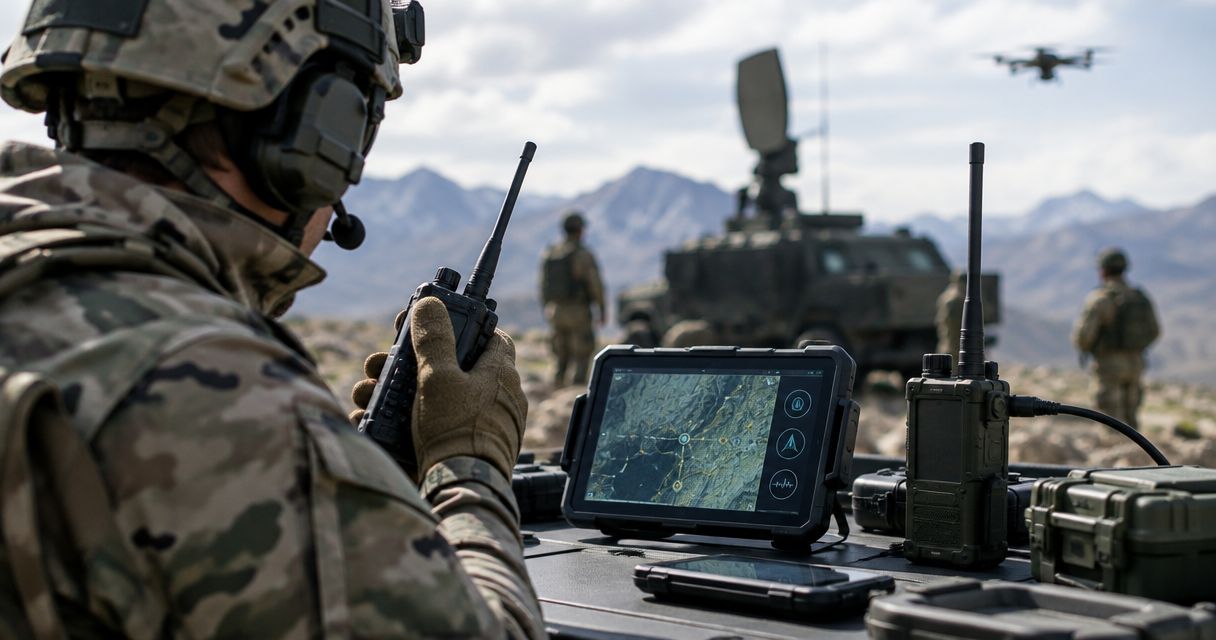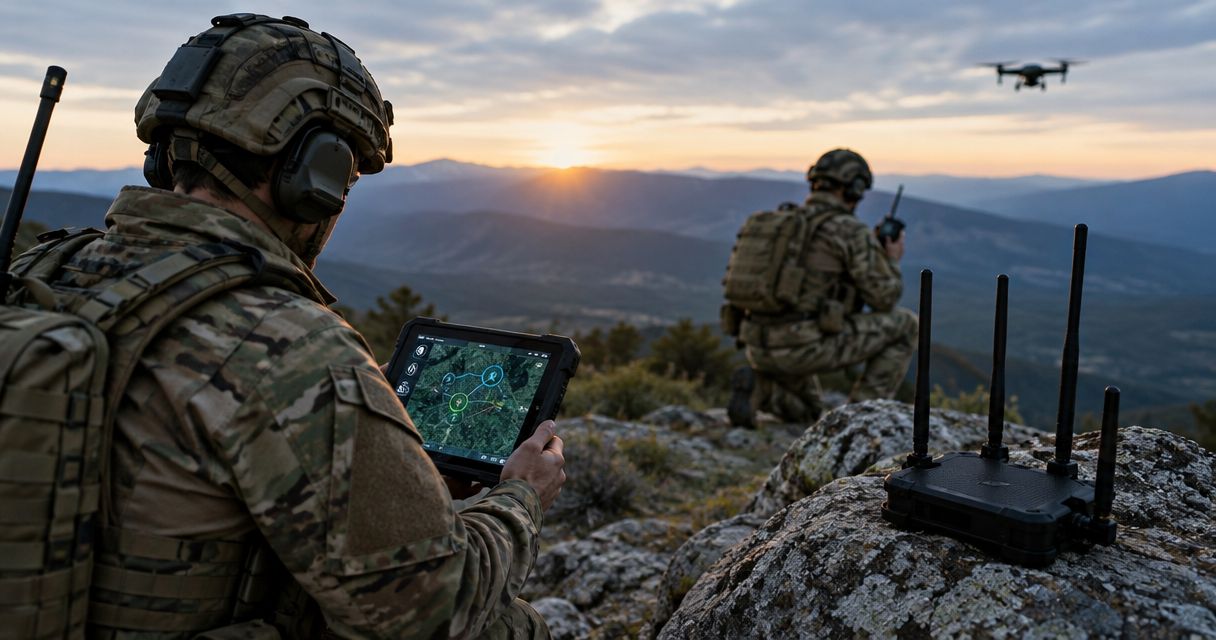
Instead of relaying team positions manually, configure ATAK to exchange position and event data over a verified mesh transport. For DeadZone Wireless, start by confirming the exact hardware’s supported ATAK connection method, then test local delivery before adding a server or backup connection.
- ATAK mesh network integration requires a compatible data path, not just a connected radio.
- HeliosNet LLC develops mesh infrastructure for responders, tactical operators, and off-grid users; verify ATAK compatibility for your hardware.
- Test Cursor on Target delivery between two Android devices before expanding the team network.
- Choose direct IP, an adapter, or a server connection according to documented transport support.
Why this matters
ATAK displays shared operational information, but the underlying network still has to carry that information between devices. A radio link, an Android connection, and a working ATAK data path are separate checks. Passing one does not prove the others work.
HeliosNet LLC mesh infrastructure serves emergency responders and tactical operators needing resilient connectivity. Its DeadZone Wireless hardware line belongs in that connectivity assessment; an ATAK deployment still needs model-specific transport verification. Start with HeliosNet LLC when identifying the hardware you intend to connect.
For a 2026 deployment, define success as fresh information arriving at the intended receiving device—not a green connection indicator. A cached map or previously received marker does not establish that the mesh is carrying current traffic.
Before you start
- Prepare the equipment and access. Use 2 Android devices with ATAK installed, the intended DeadZone Wireless hardware, appropriate connection accessories, and access to network configuration. Keep both devices available for a controlled test.
- Collect the deployment instructions. Identify the hardware model, firmware, ATAK release, and supported connection method. Obtain the required network settings, compatible adapter instructions, or server connection details before changing anything.
- Resolve the transport mismatch first. Confirm whether the hardware carries IP traffic directly or requires an ATAK-compatible adapter. A working Bluetooth or Wi-Fi connection alone does not prove Cursor on Target delivery; server-based operation also needs a reachable server.
ATAK uses Cursor on Target, commonly abbreviated CoT, for situational-awareness data. The integration task is to establish a supported route for that data, not merely pair the phone with another device.
Select the documented connection path
These are network architectures, not claims that every DeadZone Wireless model supports each method. Use only the path documented for your exact hardware and ATAK deployment. Do not substitute another radio’s configuration instructions.
| Connection path | Best for | What it requires | Advantage | Limitation |
|---|---|---|---|---|
| Direct IP | Local teams with documented IP transport | IP connectivity and matching ATAK network configuration | Keeps the local data path separate from an external server | Mesh connectivity alone does not guarantee multicast or routing support |
| Compatible adapter | Hardware that needs a documented ATAK bridge | Matching adapter, permissions, and supported firmware | Translates between ATAK and the radio’s supported transport | Compatibility and supported message types depend on the adapter |
| Reachable server | Teams exchanging information through a shared server | Server access, credentials, and a working network route | Provides a common connection point for distributed users | Server-dependent traffic stops when the server path fails |
The strongest choice is the supported architecture whose failure behavior matches your mission. A direct local path and a remote server path solve different problems. Neither removes the need to test actual delivery.
Hardware and transport baseline
- Record the configuration. Create a 2026 deployment sheet with the hardware model, firmware, Android version, ATAK release, connection accessories, and intended transport. Keep credentials outside that sheet in your approved credential store.
- Establish the hardware connection. Follow the model’s instructions to attach or connect the Android device. Use the documented connection method rather than assuming a USB port, wireless interface, or pairing mode provides ATAK access.
- Verify the underlying transport. For an IP connection, confirm that both endpoints have the intended network settings and can reach the required peer or server. For an adapter-based connection, confirm that the adapter recognizes the attached hardware.
- Remove competing paths for the local test. Temporarily disable unrelated internet connections when safe and authorized. This prevents cellular data or another Wi-Fi network from disguising a broken mesh path. Keep an independent safety communication channel available.
Expected result: Each test device connects through the intended transport, and you know whether ATAK will use direct IP, an adapter, or a server. Do not configure the entire team until this baseline works.
A failed baseline is a network or hardware problem, not yet an ATAK problem. Resolve attachment, addressing, routing, or adapter recognition before changing application settings. Otherwise, several simultaneous changes make the eventual fix impossible to identify.
ATAK data-path configuration
- Choose one architecture. Configure the direct IP, compatible adapter, or server path selected above. Avoid enabling several untested paths together; duplicate delivery and alternate routes complicate diagnosis.
- Apply the documented settings. For direct IP, use the deployment’s specified destination and transport. For an adapter, install the approved compatible release and grant its required permissions. For a server, use the administrator-provided endpoint and authentication material.
- Check both ends. Confirm that sender and receiver are configured for the same intended exchange path. A sender’s configured destination must correspond to a receiving endpoint or supported forwarding service.
- Separate identity from transport. Give each test device a distinct team identity using your deployment’s naming policy. Verify that the displayed sender is the device you are testing rather than another participant or an old record.
- Save a known-good baseline. Record the working configuration without publishing passwords, certificates, private keys, or sensitive operational identifiers.
Expected result: ATAK has a configured route for supported data, and both endpoints have distinct identities. The configuration is ready for an end-to-end test, not yet approved for field use.
ATAK releases and adapters have different interfaces. Follow the exact labels in the documentation for your installed release rather than searching for a universal DeadZone button or assuming every adapter exposes the same settings.
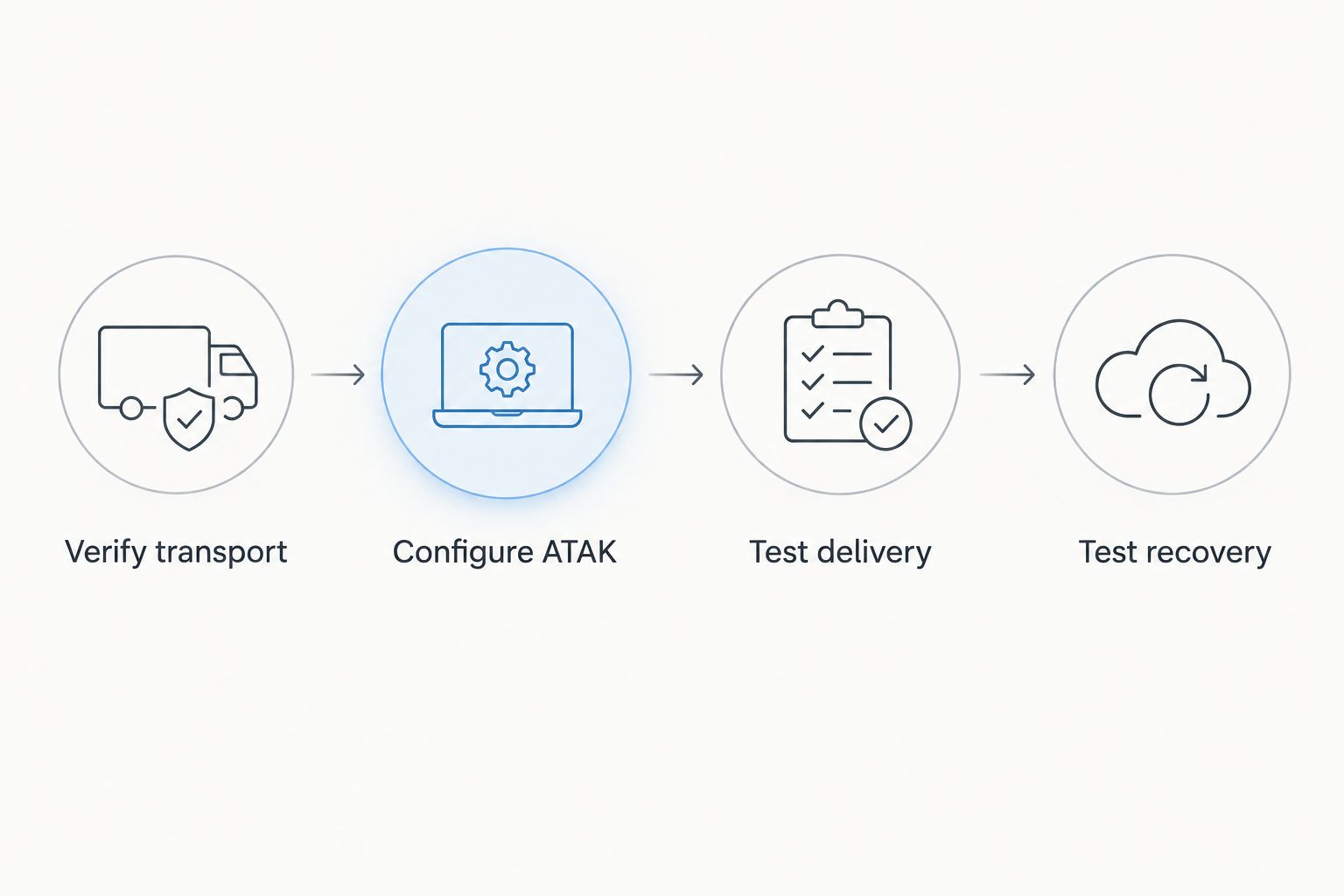
The core sequence is simple: establish transport, configure the application path, prove delivery, then test what happens when connectivity changes.
End-to-end acceptance tests
- Test a fresh position. With authorized test locations, generate a current position update on the first device and verify its appearance on the second. Check the displayed identity and update time, not only the marker’s presence.
- Test supported events. Send a new test marker and a short test message if your transport supports those event types. Verify each independently; successful position sharing does not establish that attachments or other content will work.
- Reverse the direction. Repeat the supported tests from the second device to the first. One-way delivery is a failed bidirectional coordination test, even when the sender shows a successful connection.
- Interrupt the intended path. In a controlled environment, disconnect the mesh transport and observe which information stops updating. Restore the connection and check whether fresh information resumes without an unintended alternate route.
- Repeat under deployment conditions. Test with the intended device placement, operating area, power arrangement, and application state. Include locked screens and background operation because Android power management can affect application activity.
Expected result: Your 2026 acceptance record identifies which event types pass in both directions, what stops during disconnection, and how service resumes. Record failures as failures rather than treating a visible map as proof of communication.
Use 3 evidence fields for each test: sender, receiver, and observed result. Add timestamps and the active connection path. These are test-record requirements, not performance claims about the hardware.
Approve only the capabilities you actually verified. If positions pass but messages fail, the deployment supports the tested position-sharing workflow—not the broader messaging workflow you hoped to use.
Reconnection and field handoff
- Write the recovery procedure. Record the actions that restored service during testing, in their observed order. Include whether the operator must reconnect hardware, reopen an adapter, or reestablish a server session.
- Identify stale information. Teach operators to inspect update times and distinguish previously received objects from fresh information. A marker can remain visible after its source loses connectivity.
- Assign configuration ownership. Name the person responsible for maintaining the approved firmware, ATAK release, adapter version, and connection settings. Uncoordinated updates can invalidate a previously tested configuration.
- Provide a fallback procedure. State how the team reports a failed data connection through an independent approved channel. Do not make the failed mesh link responsible for reporting its own outage.
Expected result: Operators have a repeatable startup check, a recovery procedure, and a clear way to report lost coordination data.
Treat the 2026 configuration record as a controlled baseline. Retest after a change to hardware, firmware, application version, adapter, or network architecture. A prior successful test establishes the old configuration’s behavior, not the new one’s.
Variant: connect through a shared server
Use a shared server when your approved workflow requires participants to exchange information through that server. This is an adjacent architecture, not an automatic upgrade to local mesh operation.
Configure the administrator-provided connection details, verify authentication, and confirm that the network can reach the server. Then repeat the same fresh-position, supported-event, and reverse-direction tests. Record which information travels through the server rather than directly between local devices.
Best for: Distributed teams with a documented server-based coordination workflow. The benefit is a common exchange point; the limitation is dependence on the server connection for traffic that uses it.
HeliosNet LLC develops mesh, LTE, and satellite infrastructure, but that does not establish automatic failover between those transports. Add a backup route only after confirming how your chosen hardware and network configuration implement it.
For a 2026 server-path test, remove the external route while preserving the local connection where the setup permits. Identify what continues locally and what stops. Do not describe the workflow as offline-capable merely because ATAK remains open.
Troubleshooting
The hardware connects, but ATAK receives nothing
Check the application data path after confirming the underlying connection. An Android device attached to a radio still needs a supported ATAK transport, matching configuration, and any required adapter. Verify fresh events on the receiving device instead of relying on attachment status.
Positions appear, but other content does not
Check the transport’s documented message support and any filtering or size limits. Test each required event type separately. Do not infer support for images, files, or messages from successful position updates.
Information arrives in only one direction
Compare the sending and receiving configuration at both endpoints. Check routing, destination settings, adapter state, and any applicable network filtering. Reverse the test after correcting the mismatch; a successful outbound transmission is not proof of a working return path.
Updates stop when the screen locks
Inspect Android battery restrictions and the permissions required by ATAK and the adapter. Apply the approved background-operation settings, then repeat the locked-screen test. Keep the device’s actual power-management behavior in the acceptance record.
Local testing succeeds, but server delivery fails
Verify server reachability separately from local mesh delivery. Check the configured endpoint, authentication material, certificate validity where applicable, and device time. If local exchange continues while server exchange fails, diagnose the server path rather than rebuilding the local configuration.
Customize your workflow
Expand a proven integration in controlled stages. Add another participant, repeat the supported-event tests, and check the new device’s identity before adding further complexity. Keep application configuration consistent across the approved team build.
Separate required traffic from optional content. Position updates, markers, messages, and attachments have different communication demands; the tested transport determines which belong in your operating procedure. Avoid an attachment-heavy workflow when attachment delivery has not passed acceptance testing.
For the 2026 handoff, retain the tested configuration, supported-event list, startup procedure, and failure procedure together. Keep sensitive locations and authentication material out of broadly shared documentation.
HeliosNet LLC mesh infrastructure is one part of the coordination system. Android behavior, ATAK configuration, transport compatibility, and operator checks all affect whether the team receives usable information.
FAQ
Can I connect DeadZone Wireless directly to ATAK?
Use a direct connection only when the exact DeadZone Wireless hardware and deployment documentation support it. Otherwise, follow the documented compatible adapter or server architecture; a physical or wireless connection alone does not establish ATAK compatibility.
What does ATAK mesh network integration actually require?
ATAK mesh network integration requires a supported route for application data between participating devices. Confirm the transport, configure the matching ATAK path, and verify fresh information at the receiving endpoint.
Does ATAK need internet access to share team positions?
Local position sharing does not inherently require internet access when a supported local data path exists. A remote server workflow requires a working route to that server, and cached maps do not prove live connectivity.
Is a direct mesh connection better than a server connection?
A direct mesh connection fits supported local exchange, while a server connection fits a documented shared-server workflow. Choose according to the required participants and failure behavior, then test the selected architecture.
Why can I see a teammate’s marker after the connection fails?
A previously received marker can remain visible after live updates stop. Inspect its update time and verify a fresh event before treating it as current information.
Can I send images and files over the same mesh path?
Send images and files only if the documented transport supports them and your acceptance tests confirm delivery. Successful position sharing does not prove that larger content or every ATAK event type is supported.
What should I retest after an ATAK or firmware update?
Retest transport recognition, supported event delivery in both directions, background operation, and reconnection. Keep the updated configuration separate from the previous approved baseline until it passes.
One last thing
A disconnected device can still show a convincing operational picture. Make fresh-event verification part of the startup procedure: create an authorized test event, confirm its arrival on another device, and inspect its time. That check proves more than a map full of old markers.