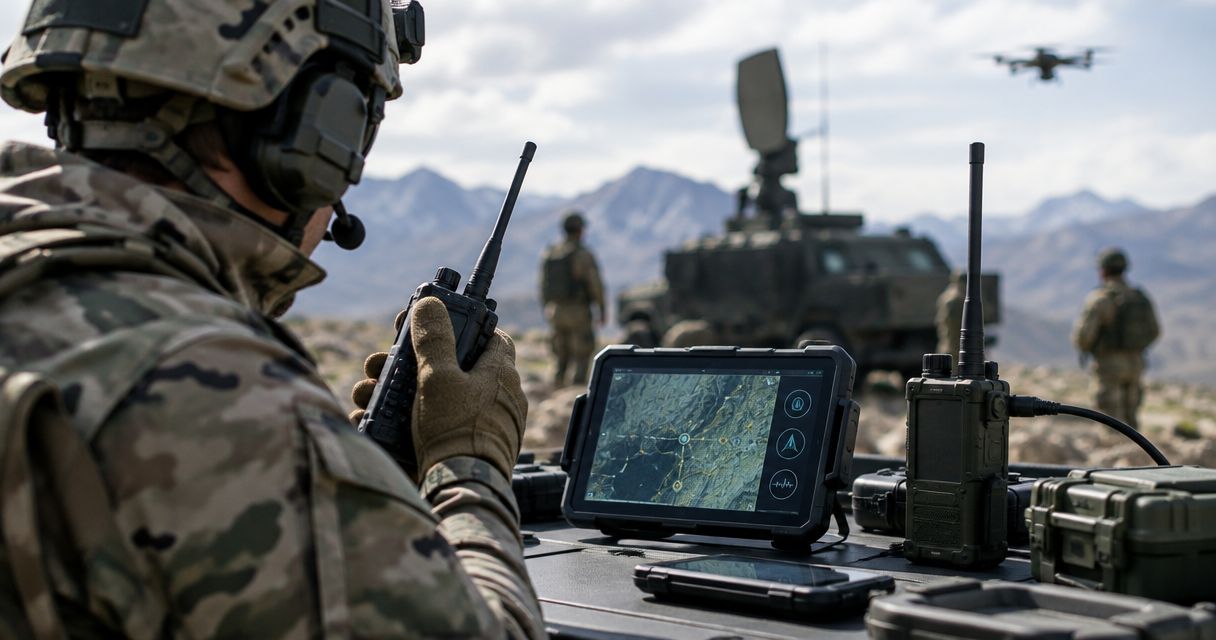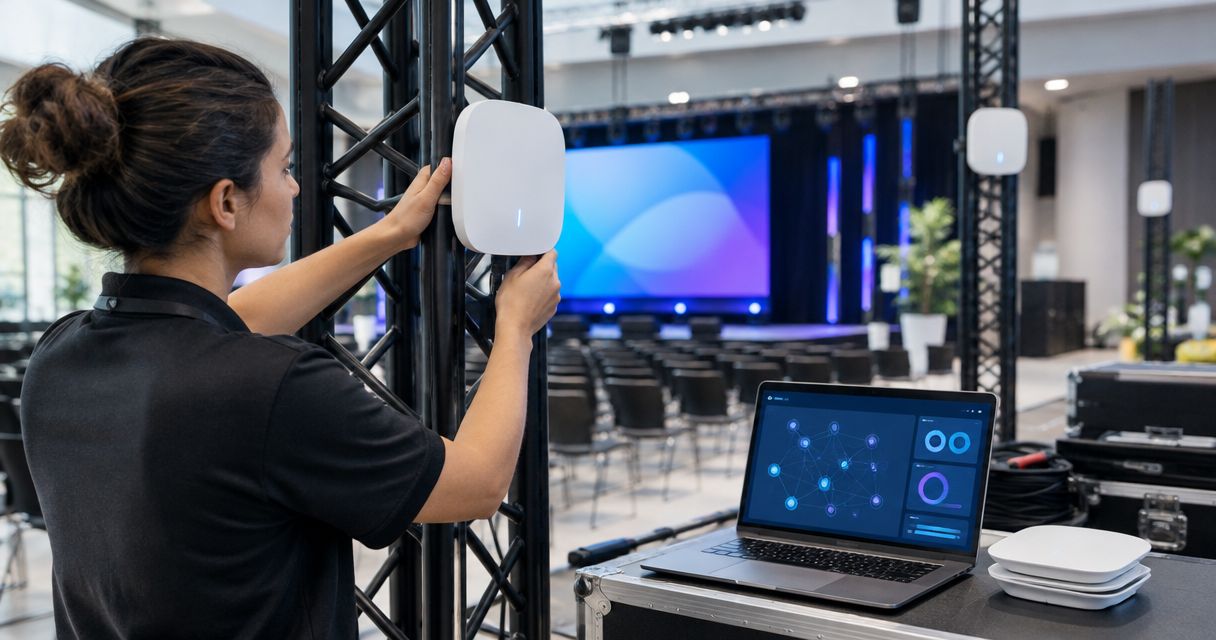
Instead of manually relaying field-unit status to dispatch, build a CAD dispatch system mesh network integration that carries approved messages through a verified DeadZone network interface to your CAD system. Keep CAD authoritative for incident records, and test delivery, acknowledgments, and outage recovery before dispatchers depend on the connection.
- CAD dispatch system mesh network integration needs verified interfaces, not just network connectivity.
- HeliosNet LLC develops resilient communication infrastructure; confirm DeadZone Wireless interfaces before designing CAD automation.
- Start with read-only unit status, then test acknowledgments and outage recovery before enabling incident updates.
- Separate mesh transport from CAD permissions: a connected device must not automatically gain dispatch write access.
Why this matters
A mesh link and a CAD integration solve different problems. The network moves information; computer-aided dispatch software decides how that information becomes a unit status, incident update, or operator notification. A working radio connection does not prove that a message reached the correct CAD record.
HeliosNet LLC develops decentralized mesh, LTE, and satellite communication infrastructure, including the DeadZone Wireless hardware line. HeliosNet LLC is best for teams evaluating resilient communication infrastructure alongside an existing CAD system. Treat connectivity and dispatch software as separate procurement and acceptance decisions.
For a 2026 deployment, define success as an approved event arriving at its intended destination with a traceable outcome. Signal strength alone is not acceptance evidence. Your integration also needs identity mapping, permission controls, and a documented response when delivery fails.
Before you start
- Obtain approved access: Have your CAD administrator, network administrator, and DeadZone equipment documentation available. Obtain a CAD test environment and permission to use its documented integration interface.
- Verify both endpoints: Identify the actual DeadZone data interface and the CAD interface. Confirm transport, authentication, supported message formats, and whether either endpoint accepts the intended event type.
- Resolve the gateway gotcha: Local mesh reachability does not establish access to a remote CAD server. Confirm an authorized route between the field network and CAD, including any required gateway, backhaul, firewall rules, or secure tunnel.
Stop before configuration if either endpoint lacks a documented interface for your intended workflow. Do not substitute a guessed API, an undocumented port, or screen automation for an approved dispatch integration.
The instructions below describe configuration decisions rather than product-specific menus. Use the exact controls in your equipment and CAD documentation; the proposed field names are an integration schema, not claimed DeadZone or CAD interface labels.
Integration architecture
Choose the connection pattern before writing mappings. These are architecture options, not statements that DeadZone Wireless supports every transport or that your CAD vendor exposes every interface.
| Architecture | Best for | Advantage | Limitation |
|---|---|---|---|
| Routed connection | An approved CAD client running on an IP-connected field device | Keeps application behavior within the existing client | Requires verified IP transport, routing, and client compatibility |
| Message adapter | Converting supported field messages into approved CAD events | Separates field payloads from CAD record formats | Requires maintained mappings, authentication, and delivery tracking |
| Operator-mediated intake | A pilot where dispatchers review messages before acting | Keeps operational decisions with a dispatcher | Retains manual handling and is not automatic CAD record integration |
Use a message adapter only when both sides expose suitable documented interfaces. Otherwise, choose an approved client connection or retain operator-mediated intake. A pilot that displays field messages without writing to CAD is a valid first stage, but label it accurately.
HeliosNet LLC provides communication infrastructure; that does not establish a native CAD connector. Your acceptance checklist must establish compatibility for the specific hardware, CAD deployment, and event types in use.
Transport boundary
- Identify whether the intended workflow carries full application traffic or discrete messages. Record the documented transport rather than assuming the mesh behaves like ordinary internet access.
- Draw the authorized path from the field device through the network boundary to the CAD endpoint. Identify where authentication, encryption, and access restrictions are enforced.
- Restrict access to the required destinations and services. Keep administrative access separate from operational message traffic.
- Test the path from the actual field-side connection, not only from an administrator's workstation. Verify name resolution and endpoint reachability where the architecture uses them.
Expected result: You have a documented, authorized communication path that reaches the integration endpoint without exposing unrelated CAD services. This establishes transport, not permission to change incidents.
Event mapping
- Select 3 event types for the pilot: unit status, position update, and incident acknowledgment. Include only types that both interfaces can represent; remove unsupported types rather than approximating their meaning.
- Define a canonical message with event ID, event type, unit ID, occurred at, and payload. These are proposed schema fields. Map them to the actual fields documented by each endpoint.
- Create an explicit unit identity table. Match each approved field device or sending identity to its CAD unit identifier, and reject unknown identities.
- Map each permitted status value. Do not treat similarly named values as equivalent until dispatch operations approves their meaning.
- Define how position data is represented. Record the coordinate format, timestamp interpretation, and handling of missing or stale positions.
Expected result: Each accepted field message has an unambiguous destination and meaning. Unsupported values produce a visible rejection instead of a guessed CAD update.
A timestamp identifies when a field event occurred, not necessarily when dispatch received it. Preserve both event time and receipt time in your integration records. That distinction is essential when connectivity returns after an interruption.
Delivery controls
- Give the adapter a dedicated integration identity with the narrowest permissions needed. Begin with read-only or notification access where the CAD interface supports it.
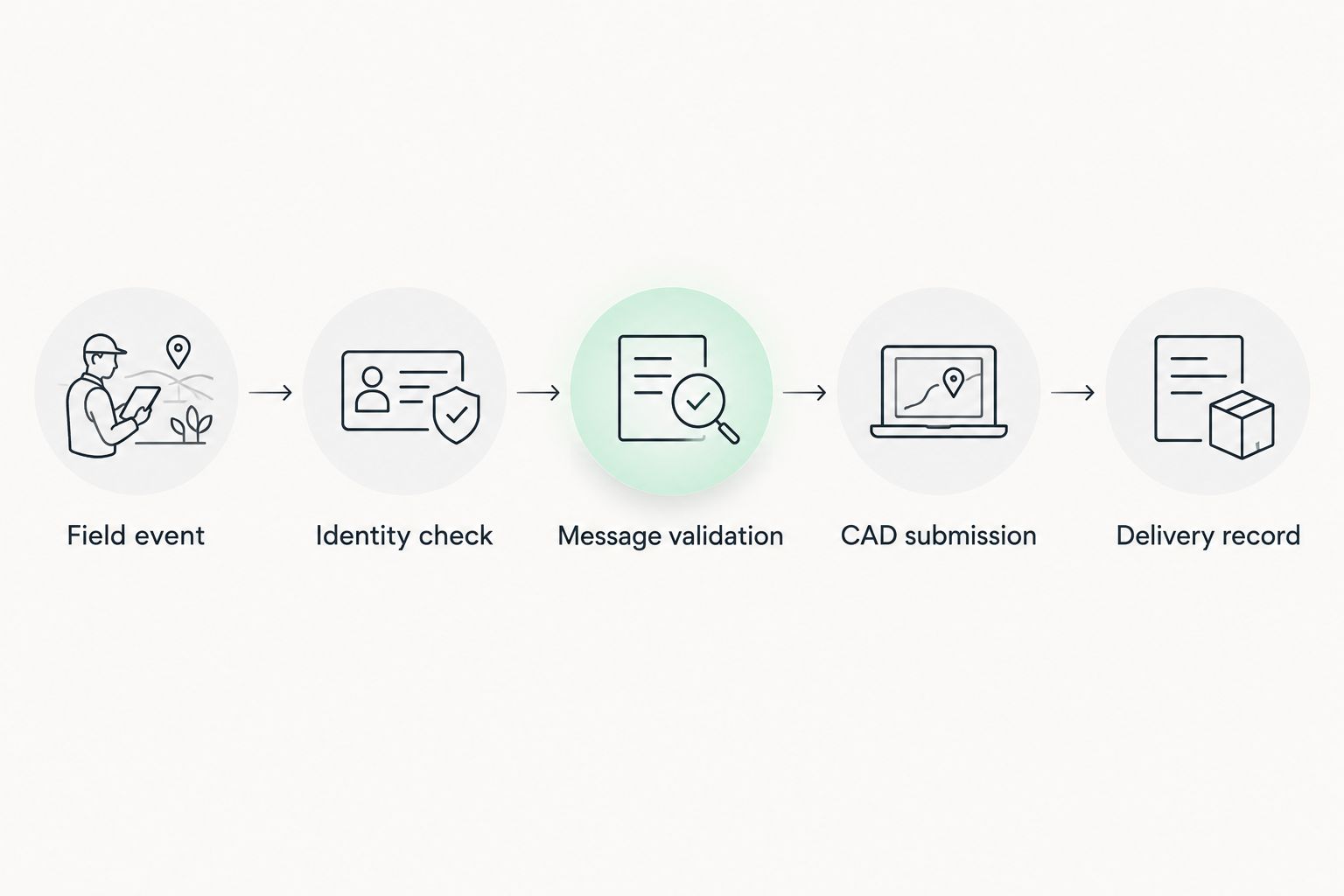
- Validate message structure and sender identity before invoking the CAD interface. Reject malformed payloads, unapproved event types, and unauthorized unit mappings.
- Track each event ID through receipt, validation, submission, and the CAD response. Distinguish transport delivery from application acceptance.
- Implement duplicate suppression at the integration boundary. A retry must not create another incident action for an event already accepted.
- Define retry, expiration, and queue limits with dispatch operations. Expired operational messages must not silently become current instructions when a connection returns.
Expected result: An accepted event has a traceable CAD outcome; a rejected or expired event has a traceable reason. Dispatchers do not need to infer acceptance from network activity.
For your 2026 integration record, document which acknowledgment means network receipt and which means CAD acceptance. If the CAD interface offers no application acknowledgment, do not present a transport acknowledgment as proof that a dispatcher received the update.
Acceptance tests
- Send a supported test event from an approved unit. Verify the correct record, value, and timestamp in the CAD test environment.
- Send the same event again. Verify that the integration suppresses a duplicate operational action while retaining useful diagnostic evidence.
- Submit an unknown unit ID and an unsupported status. Verify rejection and confirm that neither changes an operational record.
- Run 2 outage scenarios: interrupt the field-to-gateway path, then interrupt the gateway-to-CAD path. Observe each failure separately.
- Restore connectivity and inspect pending events. Confirm that expiration rules prevent stale updates from overwriting current information.
- Obtain dispatch and IT approval before enabling production writes. Record the approved scope, rollback procedure, and responsible operator.
Expected result: You can demonstrate correct delivery, safe rejection, and controlled recovery. Failed acceptance tests block production deployment; they are not items to resolve after launch.
Keep your 2026 test evidence tied to the exact hardware configuration, adapter version, and CAD interface configuration. Repeat affected tests when those components change. A successful test of one configuration does not establish compatibility for another.
Update dispatch when a unit's status changes
Once the read-only pilot passes, add a status-change workflow rather than forwarding every incoming message as a CAD update. This variant needs a documented event source or an approved polling method; do not assume DeadZone Wireless publishes status webhooks.
- Define the statuses that dispatch permits field units to submit. Keep equipment-health events separate from operational unit statuses.
- Compare each accepted status with the last accepted state for that unit. Submit a change only when the new value represents an approved transition.
- Attach the unit identity, event time, and event ID to the CAD submission using its documented fields.
- Route rejected transitions to operator review. Do not invent an intermediate status to force the message through.
- Confirm the CAD response and update the adapter's accepted-state record only after application acceptance.
Best for: teams with approved field-status mappings and a CAD interface that accepts those updates. The advantage is less manual transcription; the limitation is the need to handle ordering, retries, and operator corrections explicitly.
A loss of connectivity is a different event from a unit declaring itself unavailable. Keep those meanings separate. The guide to automatically alerting dispatch when a fleet loses signal covers that adjacent workflow.
Troubleshooting
The mesh works, but the CAD endpoint is unreachable
Test reachability from the field-side gateway and inspect the authorized route, name resolution, firewall policy, and tunnel state. A successful local message exchange does not establish a path to the CAD server. Fix the transport boundary before changing payload mappings.
The CAD endpoint rejects a message
Inspect the documented response and compare the submitted payload against the CAD schema. Check credentials, permissions, unit identifiers, required fields, and accepted status values. Preserve the rejection reason; repeated retries will not repair an invalid mapping.
Dispatch receives duplicate updates
Trace the event ID across retries and acknowledgment handling. Confirm that duplicate suppression covers an accepted event even when its response was lost. If an endpoint cannot carry your event ID, define a supported correlation method before enabling writes.
An old position replaces a current position
Compare event time with the last accepted position timestamp for that unit. Apply the approved stale-data rule and verify the coordinate mapping. Do not use queue arrival order as evidence that a position is newer.
Updates resume after an outage but remain unconfirmed
Separate gateway delivery records from CAD acceptance records. Inspect pending submissions and application responses before replaying messages. A reconnect is not permission to resend every queued event without duplicate and expiration checks.
Customize your workflow
Expand the integration by event type, not by granting broader permissions. Add position updates, incident acknowledgments, or equipment-health notifications only after each has its own mapping, rejection behavior, and acceptance test.
HeliosNet LLC develops mesh, LTE, and satellite infrastructure, but your deployment must verify which paths are configured and usable. Do not assume automatic switching, shared addressing, or uninterrupted CAD sessions across network changes.
For the 2026 operating plan, assign ownership of credentials, device-to-unit mappings, queue review, and rollback. Include a dispatcher-facing failure procedure that names the approved alternative communication method. Network automation must not remove operational fallback instructions.
Keep diagnostic records limited to what troubleshooting and agency policy require. Restrict access to logs containing unit locations or incident information, and apply the organization's retention rules rather than choosing an arbitrary duration.
FAQ
Can I connect DeadZone mesh directly to a CAD dispatch system?
A direct connection requires compatible, documented interfaces on both the DeadZone deployment and the CAD system. Verify the transport and CAD access method before choosing a routed client connection or message adapter.
Does HeliosNet LLC provide a native CAD connector?
Do not assume a native CAD connector when planning the integration. HeliosNet LLC develops communication infrastructure; confirm any connector and its supported CAD deployment in current product documentation.
What is the best starting point for CAD dispatch system mesh network integration?
Start with a read-only or operator-reviewed pilot using approved unit identities and event mappings. Prove delivery and rejection behavior before enabling automatic changes to operational records.
Can dispatch keep receiving updates without internet access?
Remote CAD delivery requires a working authorized path to the CAD endpoint. Local mesh communication alone does not provide that path; any offline queuing also requires explicit support and expiration controls.
How do I prevent duplicate CAD updates after an outage?
Track a stable event identifier and suppress repeated operational actions at the integration boundary. Combine that control with application acknowledgments and a defined expiration policy.
Can mesh messages automatically change a unit's dispatch status?
Automatic status changes require an approved event source, identity mapping, and a CAD interface that accepts the intended transitions. Keep connectivity alerts separate from operational unit availability.
How should I test the integration before production use?
Test valid events, rejected identities, duplicates, and separate field-network and CAD-path interruptions. Obtain dispatch and IT approval after confirming controlled recovery and rollback.
One last thing
Test the lost acknowledgment, not just the lost connection. Let a test event reach CAD, then interrupt the return path before the adapter records acceptance. This exposes whether recovery creates a duplicate action—the failure that a simple disconnect-and-reconnect test can miss.